

Getting Started with Calendar
Getting Started for the First Time
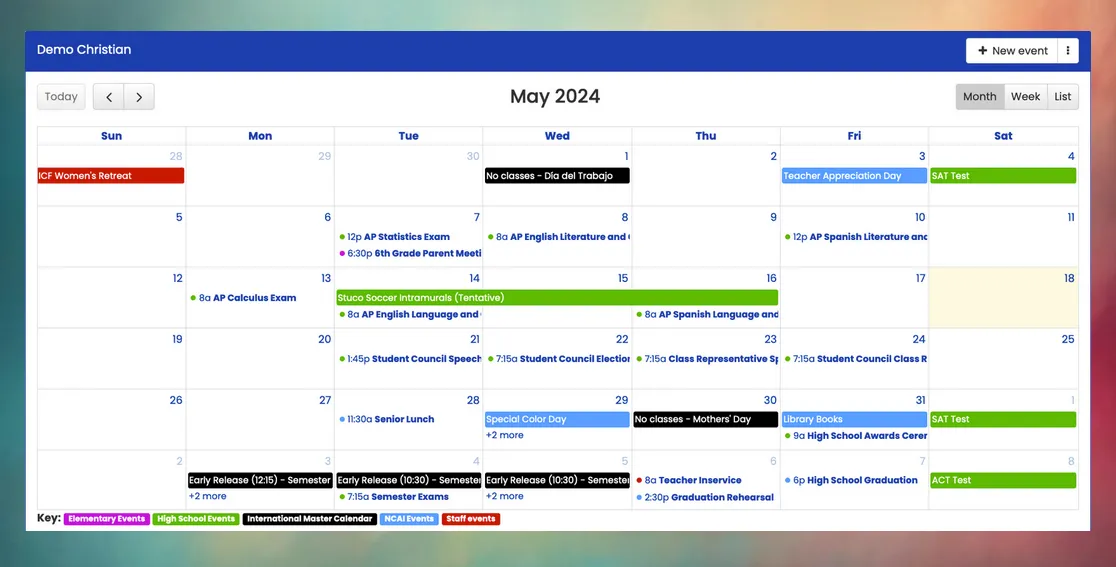
Section titled “Getting Started for the First Time”If you are setting started with Mosaic calendar for the first time in your school, consider the following steps:
- First, ensure that your school year has been set up with the start and end dates of each marking period.
- Next, add all Master Calendar events (holidays, teacher planning days, early release days, and school activities).
- Then, review the list of school calendars, creating additional calendars and adjusting visibility settings for each calendar. Click for further instructions
- Finally, begin to add all remaining school events to the appropriate calendars. Include parent programs and meetings, school and student events, extracurricular events, and anything else that you want to include in your school’s official event calendar.
Understanding the Master Calendar
Section titled “Understanding the Master Calendar”Each school has one master calendar. Events on the master calendar are integrated into other Mosaic features, such as attendance, lunch orders, teacher PlanBooks, and other areas. It is important that any special days on the school calendar are correctly recorded here.
| Event Category | Description |
|---|---|
| No school (holiday) | Do not prompt teachers for attendance and lunch orders. |
| No school (teacher planning) | Do not prompt teachers for attendance and lunch orders. Teachers are still expected to attend. |
| No school (other) | Do not prompt teachers for attendance and lunch orders. Examples could include snow days and other calendar changes not related to a holiday. |
| Early release | Specify a different start and/or end time of the day, which also adjusts the calculation of partial absences for late arrivals or students who sign in or out during the day. |
| School activity | This category is typically used when students are present at school for special programs or activities but do not attend regular classes. PlanBooks automatically avoid scheduling normal lesson plans on these days. |
Adding New Events
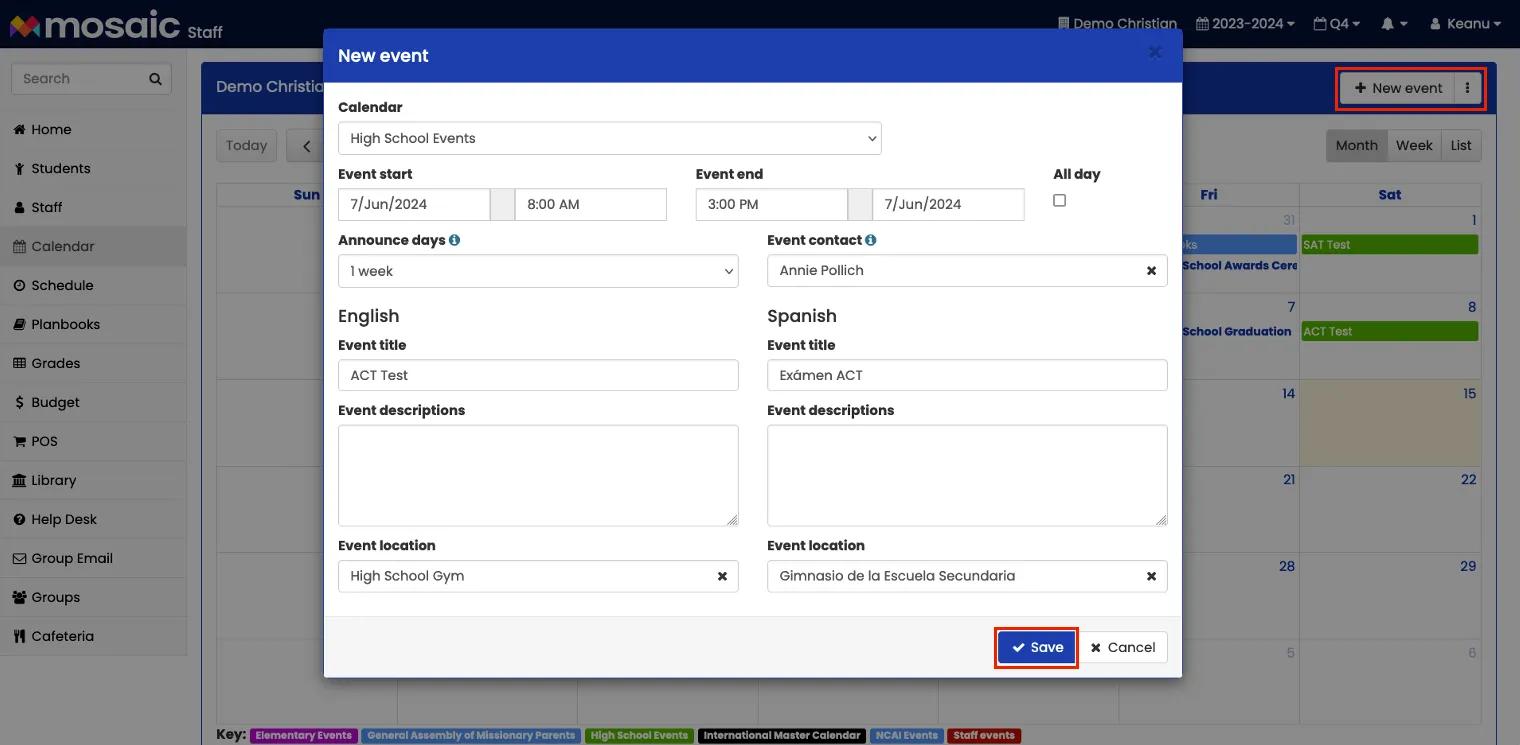
Section titled “Adding New Events”To create a new event, click the New event button. Select the calendar, start and end dates/times, and provide the event title, description, and location.
Announce days
Section titled “Announce days”All events are visible as soon as they are created, but upcoming events are publicized with on the Announce days setting. The default setting is 2 weeks, which means that the event will be displayed on users’ home screen and included in weekly emails beginning 2 weeks before the event date. You can set individual events to appear as “upcoming events” a long time in advance (up to 6 months), or only a few days before the event.
Event contact
Section titled “Event contact”If you specify a staff member for the event contact, this staff member’s name and email address will be attached to the event when it is announced.
Moving Events
Section titled “Moving Events”There are 3 ways to change the date or time of an event.
- Click the event and then click the Edit button.
- Double-click the event to open directly to the edit window.
- Click and drag the event on the calendar page to change the date or time. Changing the time is only possible in the week view.
Duplicating an Event to Many Dates
Section titled “Duplicating an Event to Many Dates”Some events happen on many days: a weekly chapel, a late-start day, or a label for every school day such as “Academy Day” or “Home Learning Day”. Instead of creating each one by hand, duplicate the event to all of its dates at once.
- Click the arrow next to Duplicate Event and choose Multiple / repeating dates…. The dialog shows the event you are copying at the top.
- Choose the calendar for the copies.
- Pick the dates in either of two ways, or combine them:
- Click days on the month calendar. Click a day again to remove it. The original event’s date is outlined.
- Under Fill by weekday, choose one or more weekdays and a From and To date, then click Add dates. For example, choose Tuesday and Thursday from the first day of school to the last.
- Check the selected dates, listed by month under the calendars, then click Create events.
To make one new event from an existing one and change some of its details, click Duplicate Event itself: it opens a new event with the details filled in, ready for a new date.
Each copy has the same title, description, details, files, links and header image as the original, and keeps the original’s length, so a two-day event becomes a two-day event on each date. You can choose up to 200 dates at a time.
Skip no-school days (on by default) leaves out holidays, teacher planning days and other days off on the master calendar when you fill by weekday. Mosaic lists the days it skipped, so you can see what was left out. Days off are also highlighted on the month calendar, and you can still click one to add it.
Does Mosaic support recurring events?
No, recurring events are not supported. For an event that repeats, create one and then duplicate it to all of its dates at once.
Can I add a range of holidays to the master calendar at the same time?
Yes. Create the first holiday, then click the arrow next to Duplicate Event, choose Multiple / repeating dates… and click each of the other days on the month calendar. All of the copies are created in one step. See Duplicating an Event to Many Dates. For a holiday that runs several days in a row, a single event with a later end date also works.
Can I reuse past events when creating new events?
Yes, there are several ways to do this.
- When viewing an event, click the Duplicate Event button.
- Click the ⋮ dropdown menu button next to New event, then click Duplicate past event. Start typing the title of the past event, and when it appears, click the Duplicate button.
- Use the powerful Rollover events feature to roll over many events from one school year to the next. Click for more information.