

GradeBooks
Effortlessly manage, track, and communicate student progress.
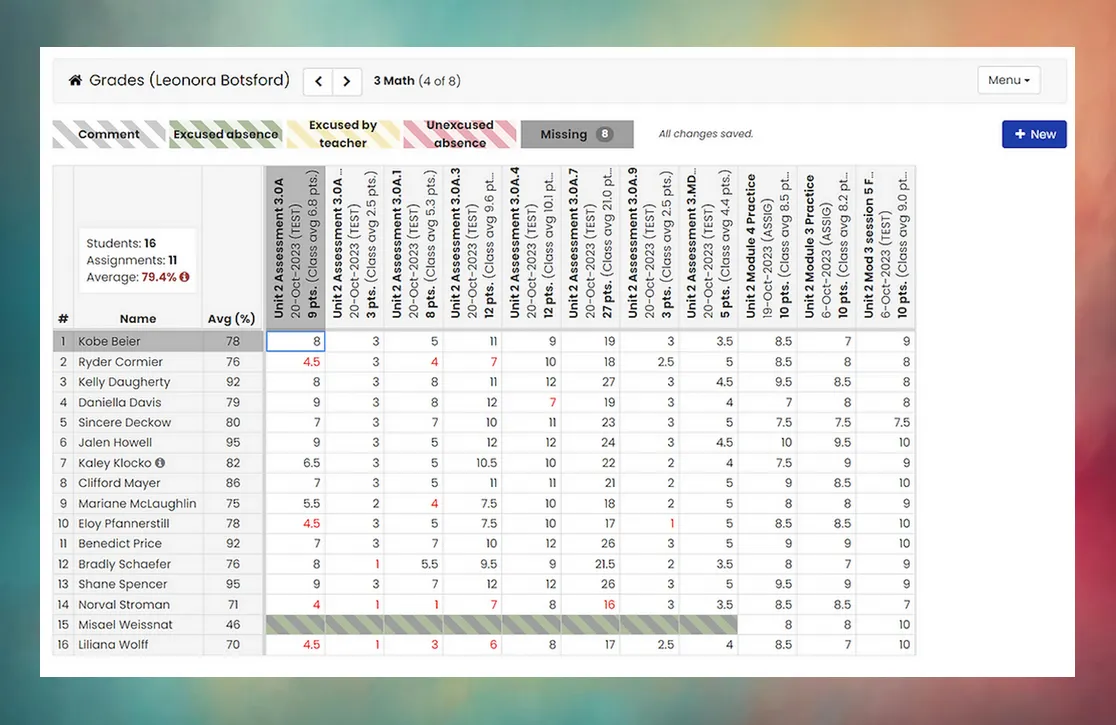
GradeBooks empowers you to efficiently manage your students’ grades using Mosaic.
With customizable grading categories, Mosaic will automatically calculate and measure performance to meet your classroom’s specific needs.
Keep students and their parents up-to-date throughout the course with automated weekly notifications for low grades and missing assignments, allowing for timely intervention. Students and parents can conveniently monitor grades and assignments through personalized logins, encouraging continuous engagement from both parties.
The Mosaic GradeBook is designed for ease of use and is seamlessly integrated with attendance records. Educators can explore a range of grade reporting options and customization features tailored to meet the specific requirements of each course within every organization.
Grade Calculation
Section titled “Grade Calculation”With customizable categories and weighting options, you can tailor the grading system to fit your specific course requirements.
GradeBooks handles all the complex calculations and averages automatically, saving time and reducing the margin for error. Grades are updated in real time, ensuring that students, parents, and educators will always have access to the current information. Whether it’s simple point-based grading or more complex weighted grading systems, GradeBooks ensures accuracy and consistency. Furthermore, you can easily adjust grading parameters as needed throughout the academic term, accommodating changes in curriculum or assessment methods.
With Mosaic’s GradeBooks, the burden of manual grade calculation is lifted, allowing educators to focus more on meaningful student engagement and academic support.
Score Codes
Section titled “Score Codes”Instead of a number, you can enter one of three codes in any GradeBook cell — type it directly, or right-click the cell and choose it. Each does something different to the average and to what families see, and a cell can also be flagged Late alongside its score:
| Code | Effect on the average | Counts as missing? | Families and students see |
|---|---|---|---|
| Ex (Excused) | Not counted at all. Its points come out of the total, so the average is exactly what it would be if the assignment did not exist. | No | ”Ex” instead of a score. Never in missing-assignment emails. |
| Inc (Incomplete) | Counts as a zero. It also marks the term grade incomplete — the report card shows “Inc” instead of a number until the work is scored. | Yes | ”Inc” instead of a score, listed under Missing. Included in missing-assignment emails. |
| R (Received) | Not counted yet. It stays out of the average, the same as Excused, until you replace the R with a score. | No — it was handed in | ”R” instead of a score. Never in missing-assignment emails. |
| Late (a flag, not a code — it sits alongside a score) | None. The score counts exactly as entered. | No | A clock icon beside the score. Late marks are tallied per term, so a pattern of them shows up in academic-habits reporting. |
| (empty cell) | Counts as a zero, and indicates the student still needs to submit this. | Yes | Blank, listed under Missing. Included in missing-assignment emails. |
The GradeBook legend shows each of these in the color it takes in the grid; the question mark at the start of the legend opens this table in the app.
Two things worth remembering:
ExandRdo the same arithmetic. The difference is what they mean:Exsays the student is excused from the work permanently, whileRis a placeholder saying the work arrived and still needs grading. OnlyRis expected to become a number later.- An unexcused absence can override
ExandR. If your school penalizes unexcused absences, an unexcused absence on the due date scores the assignment zero even when you marked itExorR.Incalways takes precedence.
Grade & Assignment Reminders
Section titled “Grade & Assignment Reminders”Weekly email notifications are automatically generated and sent to parents and students, ensuring they stay informed about missing assignments and low grades.
By sending these reminders, Mosaic ensures that parents and students receive timely updates, empowering them to take proactive measures to address academic challenges as they arise. Our goal is to foster continuous communication and engagement between educators, students, and parents— ultimately supporting student success.
How do I configure or update the parental emails that receive "Grade & Assignment Reminders" for a student?
GradeBooks automatically sends grade and assignment reminders based on the contact information in the student profiles. Your administrator is able to update this information at any time by following this navigation path:
Students > Grade Level > Student Name > Family > Edit Parent/Guardian Email
If a set of parents have more than one child, is a separate login required to view each GradeBook?
Only one login is required. By visiting the Family Portal, parents are able to view current grades, missing assignments, and assigned homework for each of their children with ease.
What are the benefits of creating different categories for grades?
The ability to create custom categories makes it easy to assign different weights to various types of assignments. For example:
- Tests and Quizzes = 40%
- Projects = 20%
- Homework = 10%
- Final Exam = 30%