

Getting Started with Calendar
Esta página aún no está disponible en tu idioma.
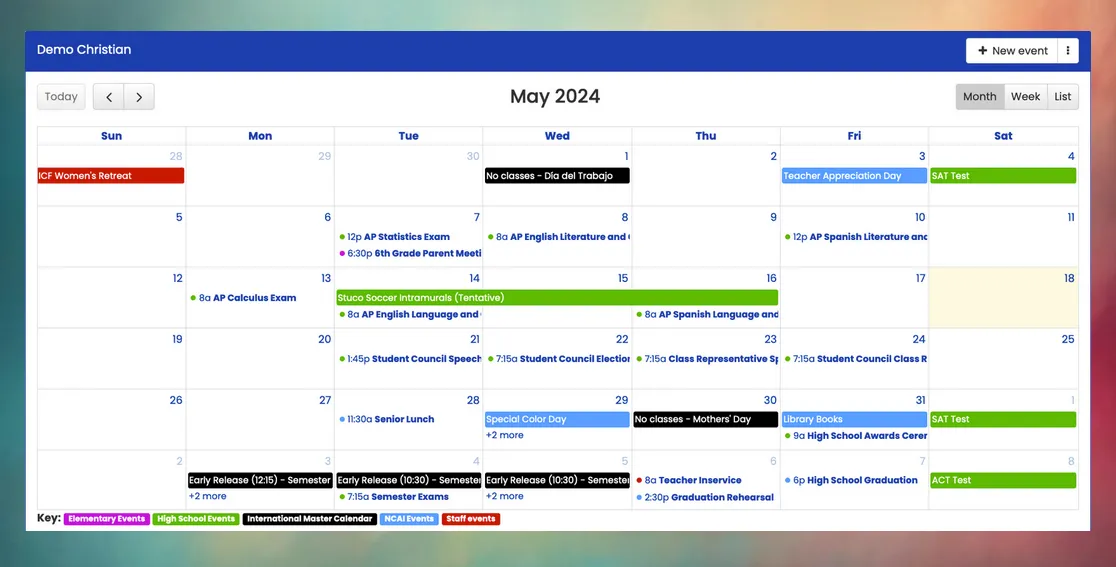
Getting Started for the First Time
Section titled “Getting Started for the First Time”If you are setting started with Mosaic calendar for the first time in your school, consider the following steps:
- First, ensure that your school year has been set up with the start and end dates of each marking period.
- Next, add all Master Calendar events (holidays, teacher planning days, early release days, and school activities).
- Then, review the list of school calendars, creating additional calendars and adjusting visibility settings for each calendar. Click for further instructions
- Finally, begin to add all remaining school events to the appropriate calendars. Include parent programs and meetings, school and student events, extracurricular events, and anything else that you want to include in your school’s official event calendar.
Understanding the Master Calendar
Section titled “Understanding the Master Calendar”Each school has one master calendar. Events on the master calendar are integrated into other Mosaic features, such as attendance, lunch orders, teacher PlanBooks, and other areas. It is important that any special days on the school calendar are correctly recorded here.
| Event Category | Description |
|---|---|
| No school (holiday) | Do not prompt teachers for attendance and lunch orders. |
| No school (teacher planning) | Do not prompt teachers for attendance and lunch orders. Teachers are still expected to attend. |
| No school (other) | Do not prompt teachers for attendance and lunch orders. Examples could include snow days and other calendar changes not related to a holiday. |
| Early release | Specify a different start and/or end time of the day, which also adjusts the calculation of partial absences for late arrivals or students who sign in or out during the day. |
| School activity | This category is typically used when students are present at school for special programs or activities but do not attend regular classes. PlanBooks automatically avoid scheduling normal lesson plans on these days. |
Adding New Events
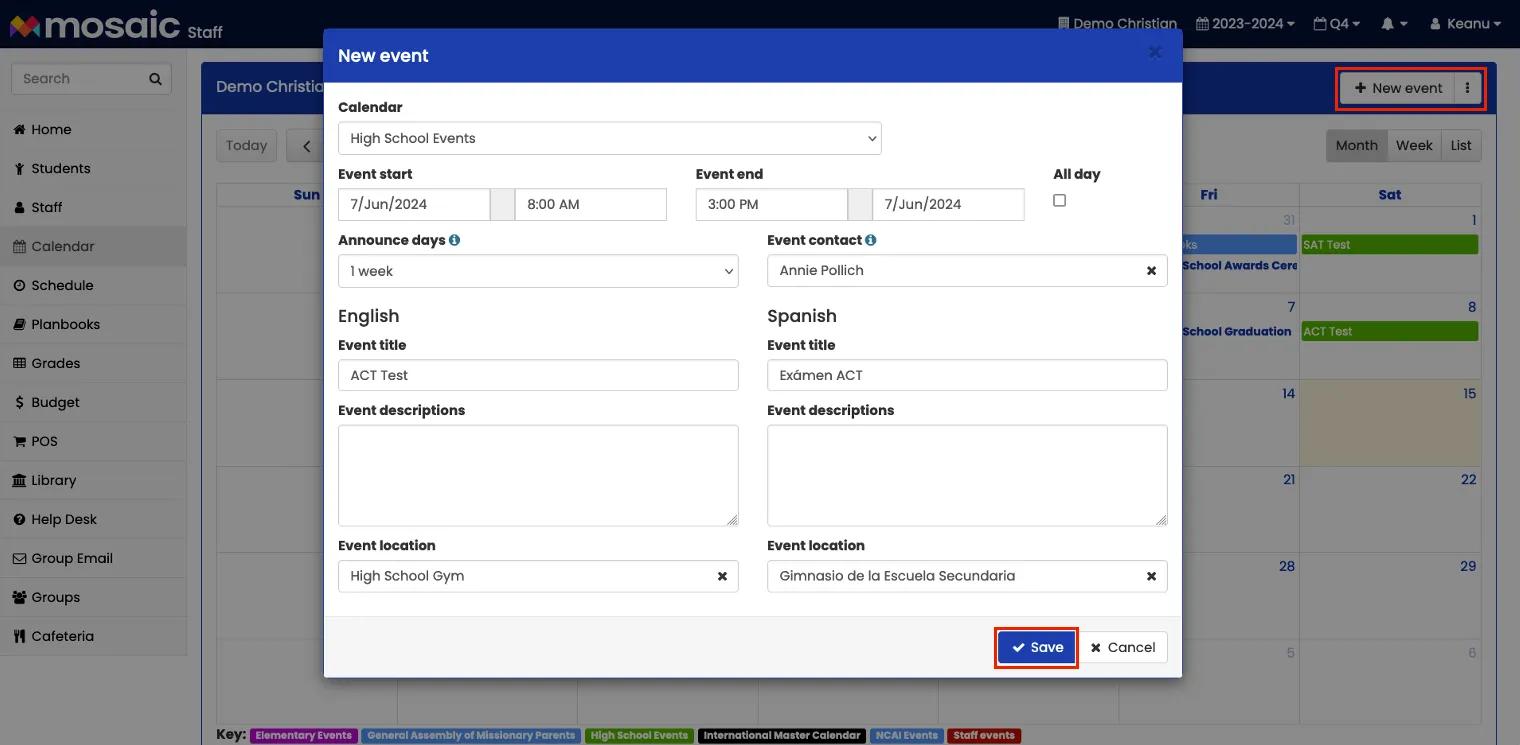
Section titled “Adding New Events”To create a new event, click the New event button. Select the calendar, start and end dates/times, and provide the event title, description, and location.
Announce days
Section titled “Announce days”All events are visible as soon as they are created, but upcoming events are publicized with on the Announce days setting. The default setting is 2 weeks, which means that the event will be displayed on users’ home screen and included in weekly emails beginning 2 weeks before the event date. You can set individual events to appear as “upcoming events” a long time in advance (up to 6 months), or only a few days before the event.
Event contact
Section titled “Event contact”If you specify a staff member for the event contact, this staff member’s name and email address will be attached to the event when it is announced.
Moving Events
Section titled “Moving Events”There are 3 ways to change the date or time of an event.
- Click the event and then click the Edit button.
- Double-click the event to open directly to the edit window.
- Click and drag the event on the calendar page to change the date or time. Changing the time is only possible in the week view.
Does Mosaic support recurring events?
No, recurring events are not supported. For multiple identical events, create one and then use the Duplicate Event button to create additional events on different dates with the same details.
Can I add a range of holidays to the master calendar at the same time?
Unfortunately, this is not currently supported. You would need to create one event and then duplicate it to each of the other affected days.
Can I reuse past events when creating new events?
Yes, there are several ways to do this.
- When viewing an event, click the Duplicate Event button.
- Click the ⋮ dropdown menu button next to New event, then click Duplicate past event. Start typing the title of the past event, and when it appears, click the Duplicate button.
- Use the powerful Rollover events feature to roll over many events from one school year to the next. Click for more information.