

Managing Calendars and Options
Esta página aún no está disponible en tu idioma.
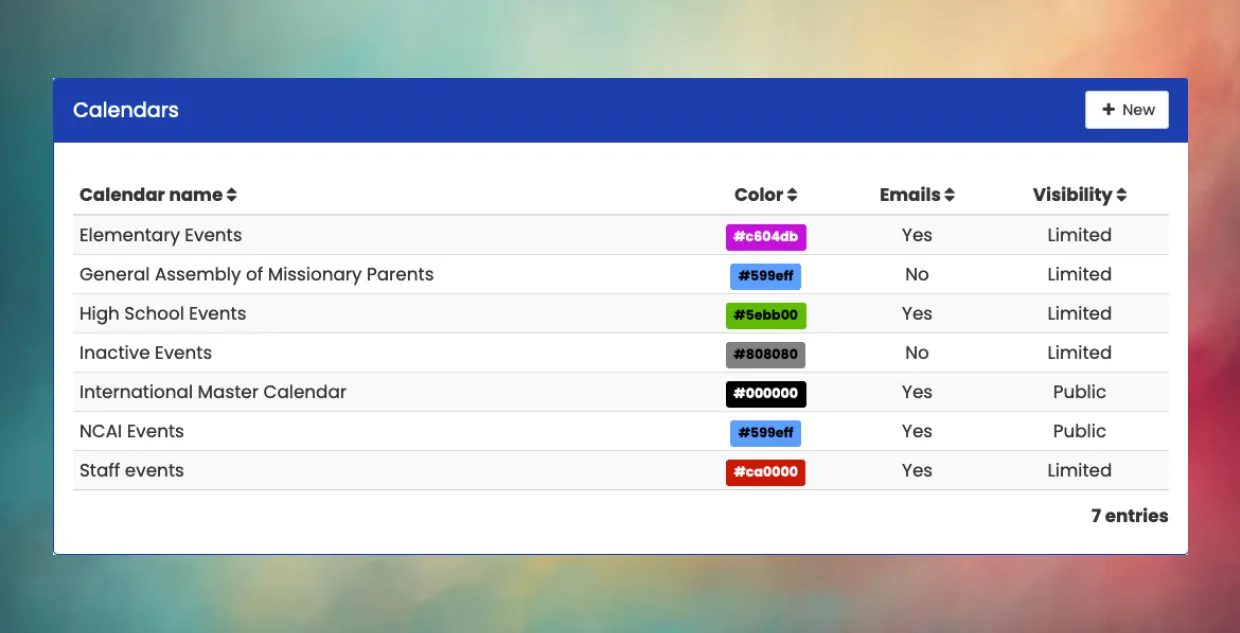
To see the list of school calendars and related settings, navigate to the User menu (top-right corner) and select School Settings. Click on the Calendars tab.
Creating and Modifying Calendars
Section titled “Creating and Modifying Calendars”To create a new calendar, click the New button. To edit an existing calendar, click the calendar on the list. To delete a calendar, first click it to open the Edit window and then click the Delete button. The Master Calendar cannot be deleted.
Visibility
Section titled “Visibility”By default, calendars are Public, which means events are visible to all staff, students, parents, and in Google Calendar integrations. You can choose to restrict who can see the events on a specific calendar by changing visibility to Limited and selecting an audience. The audience can include certain staff categories and/or specific grade levels for students and/or parents.
Permissions
Section titled “Permissions”Normally, only certain privileged users (e.g. administrators and secretaries) will have access to create and modify calendar events. You can give access to one or more users to contribute or manage a specific calendar.
- View only: The user can see this calendar even if the visibility is limited.
- Limited: The user can create new events in this calendar, and modify or delete the events they have created. They cannot modify events created by other users.
- Full: The user can create and edit all events in this calendar, including events created by other users.
Include in Emails
Section titled “Include in Emails”If weekly events emails are enabled, you can designate whether or not events from this calendar are included in these emails.
Configuring Weekly Emails
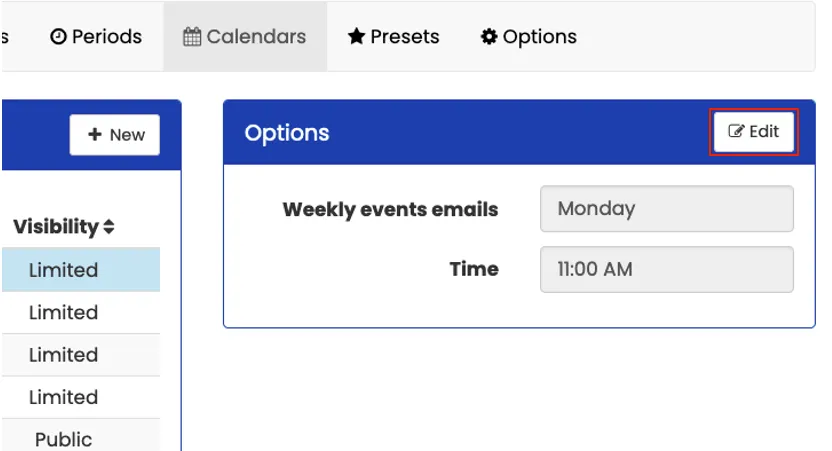
Section titled “Configuring Weekly Emails”To enable weekly emails, click Edit in the Options panel and select a day of the week and a time for these emails to be generated. All current staff members, students, and parents (unless they have restricted automated emails) will receive an email each week with a list of upcoming events. Events are included in these emails based on the Announce days setting in each event and the calendar visibility options.
Can you have more than one Master Calendar?
No, each school can only have one Master Calendar.
What are typical school calendars?
A typical K-12 school might have the following calendars and visibility settings:
- Master Calendar: (Public) This calendar should include all holidays, teacher planning days, early release days, and any school activities that would affect teacher PlanBooks.
- School Events: (Public) This calendar might include all school events that you want the entire community to know about, such as parent-teacher conferences, programs, seminars, open houses, and other school events.
- Elementary Events: (Limited) This calendar might have a limited audience, including all staff but only parents/guardians and students of selected grade levels.
- Secondary Events: (Limited) Similar to Elementary Events, this calendar might be visible to all only staff and high school students and their parents/guardians.
- Athletic Events: (Public) This calendar would include all athletic events to give your Athletic Director special access to manage this calendar.
- Staff Events: (Limited) This calendar could include events that do not need to be visible to students or parents.
Can you restrict visibility of individual events?
Yes, individual Master Calendar events can be restricted. For example, you might choose to include field trips or retreats as school activities in the master calendar, since teachers of these students would not have normal lessons that day. This type of event would be filtered to be visible for only selected grade levels.