

PlanBooks
Stay organized with all of your lesson plans in one place.
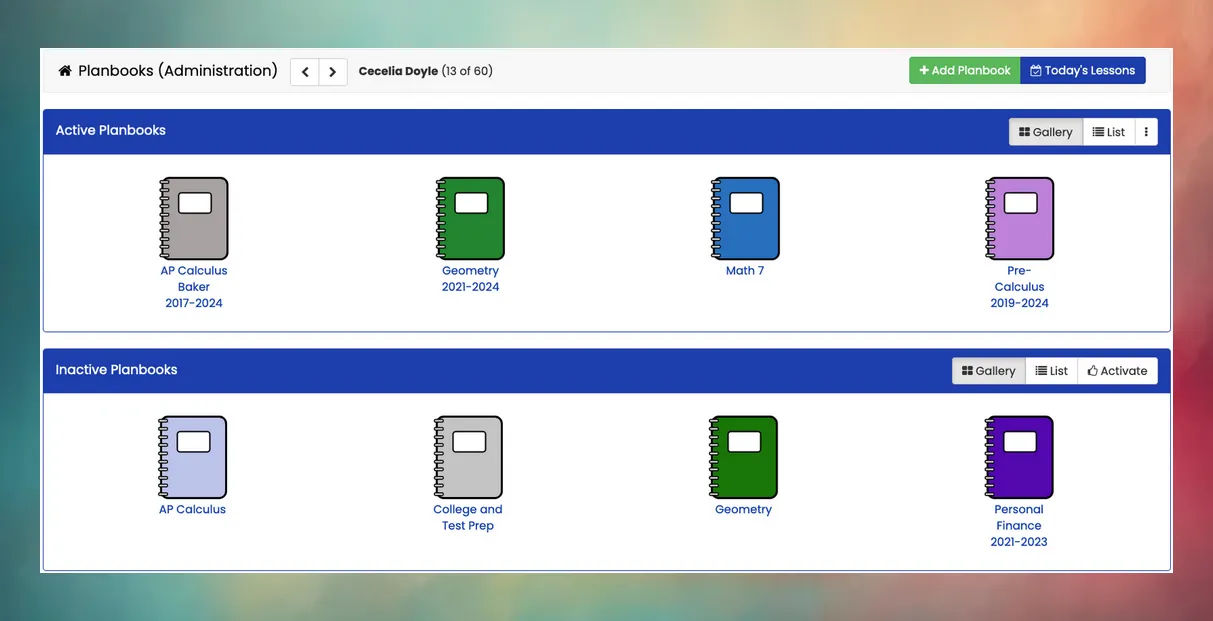
PlanBooks provides teachers with an intuitive way to organize lesson plans for each class. With this feature, teachers can create units to organize the course into sections, and create individual lesson plans within each unit. All units and lessons are then tied to a specific period or date on the calendar, which creates a clear timeline for the course.
See below for a sample diagram of the PlanBooks hierarchy:

PlanBook Types
Section titled “PlanBook Types”From the faculty perspective, a PlanBook will appear to have one of four statuses:
- Active: Currently being used by the faculty member and linked to an ongoing class.
- Inactive: Not in use by the faculty member and not linked to any current class.
- Shared with Me: In use and accessible to the faculty member, but not owned by them.
- Archived: From a previous term and not currently in use.
Sharing with Faculty
Section titled “Sharing with Faculty”One of the standout features of PlanBooks is the ability for faculty to share their lesson plans with colleagues. Using the PlanBook sharing feature is particularly beneficial in organizations where multiple faculty members teach the same course. This promotes a consistent schedule, uniform lesson plans, and cohesive teaching methods, while also facilitating knowledge sharing among faculty.
To share one of your lesson plans with another teacher, follow this navigation path:
PlanBooks Sidebar → Select Course Teacher → Select PlanBook → Share
A PlanBook can be shared with an unlimited number of faculty members, but it is recommended to only grant Edit access to those who need it. This prevents unauthorized changes and ensures that lesson plans are modified only by those who require editing capabilities.
Unit Summary
Section titled “Unit Summary”To help organize the PlanBook into units, each unit created will list out all of the lessons included, along with additional general information such as:
- Objectives and Learning Targets: The specific skills, knowledge, and attitudes students are expected to develop by the end of the unit.
- Methods: The instructional strategies and activities used to engage students, such as readings, discussions, videos, and projects.
- Evaluation: The tools used to assess student understanding, including exams, quizzes, projects, and homework.
- Resources: Materials and tools that support instruction, such as presentation slides, file names, websites, and other references.
- Biblical Integration: Connections between the unit’s content and biblical principles, stories, or teachings to provide a faith-based perspective.
- Service Component: Opportunities for students to apply their learning through hands-on, service-oriented projects.
Lesson Details
Section titled “Lesson Details”Each lesson within a unit includes the following components to support effective planning and delivery:
- Objectives and Learning Targets: The specific skills, knowledge, and attitudes students should demonstrate by the end of the lesson.
- Materials: Required resources such as presentation slides, worksheets, activities, and other instructional tools.
- Lesson: A step-by-step plan detailing the sequence of activities and materials used during the lesson.
- Reflections: Prompts or activities that encourage students to evaluate their learning and deepen understanding.
- Homework: Assignments designed to reinforce learning outside the classroom.
Does PlanBooks integrate with my calendar?
Yes. PlanBooks allows you to assign start and end dates for each unit, as well as specific delivery dates for each lesson. This integration with your Mosaic calendar enables you to generate a calendar showing the schedule for the entire unit, including lesson delivery dates and homework assignments.
How do I activate a PlanBook that is displaying as inactive?
A PlanBook will automatically show up in your Active PlanBooks list once it has been linked to a current class. To do this, simply navigate to the PlanBooks page and click the Activate button under Inactive PlanBooks. Only one PlanBook can be assigned to each course.